
Jupyter Notebooks and Google Colab
Start here Before we learn any algorithm, we need a place to write and run Python code. This page shows three ways to do it, and why most data science people love the third one: the notebook.
Three ways to write and run code
| Way | What you do | Good | Not so good |
|---|---|---|---|
| Manual | Write code in a text editor (like Notepad). Save it as main.py. Run it from the command line: python3 main.py | Simple, works everywhere | You keep switching between two windows |
| IDE (Integrated Development Environment) | One app where you write AND run code. Example: an online IDE like replit, or a desktop IDE | Quick "change → run → see" cycle, helps with debugging and testing | Sharing your work with output is not easy |
| Notebook (Jupyter, Google Colab) | Code, text and output all live together in one page | Easy to share, explain and show results | Running cells out of order can confuse you (see below) |
What is a Jupyter notebook?
A notebook is a list of boxes called cells, one below the other. Think of it like a one-column spreadsheet.
There are two kinds of cells:
- Code cell — holds Python code. You run it, and the output appears right below it.
- Text cell — holds explanation written in Markdown (a simple way to make headings, bold text and lists).
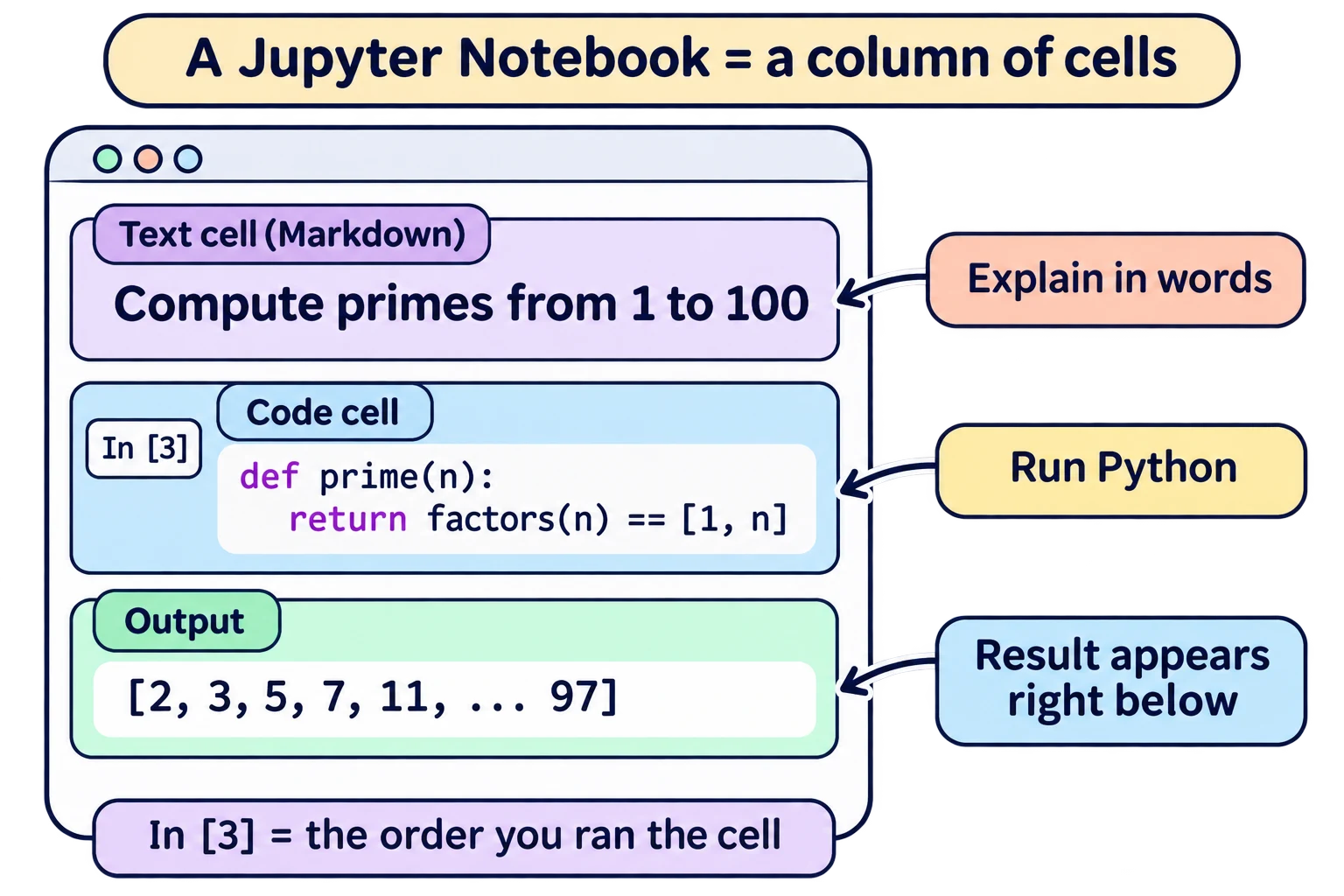
Everyday example: A notebook is like your school practical file. On one page you write the aim (text), the working (code), and the result (output) — all together, so anyone can read and check it.
Why notebooks are so useful
- Share your code — a friend can open your notebook and see everything.
- Collaborate — many people can work on the same notebook.
- Report results — the output (even graphs!) is saved inside the notebook.
- Documentation — explanation sits right next to the code it explains.
- Try different versions — you can keep two versions of a function in two cells and run the one you want.
- Export and import — save the whole project as one
.ipynbfile and open it anywhere.
Run cells one by one (and why order matters)
You can edit any cell and run it again. When you run a cell, Python remembers everything it defined. This memory is called the environment (or the kernel's state).
Lecture example — two versions of
prime()The lecture notebook had two cells, both definingprime(n): ``python def prime(n): return factors(n) == [1, n] # version A``python def prime(n): return len(factors(n)) == 2 # version B`The number next to a cell, likeIn [3], tells you the order in which it was run, not its position on the page. Whicheverprime()cell you ran last is the one Python uses. (Here both versions give the same answer, so the prime list[2, 3, 5, 7, ..., 97]` comes out the same.)
Watch out: if you run cells out of order, the page may show one thing while Python remembers another. If things look strange, use Restart and run all — it runs every cell from top to bottom.
Kernels: which language runs your code
The part that actually runs your code is called the kernel. Jupyter supports many kernels — the name Ju-Pyt-e-R comes from Julia, Python and R. In this course we only use the Python kernel.
Jupyter is very popular for sharing machine-learning work — for example, solutions on Kaggle (kaggle.com) are usually notebooks. Jupyter even won the ACM Software System Award in 2017.
Google Colab
Google Colaboratory (Colab) is a free, ready-to-use Jupyter notebook that runs in your browser at colab.research.google.com.
- Nothing to install — just log in with a Google account.
- Common machine-learning packages (like scikit-learn and TensorFlow) are already installed.
- You can even use a GPU (a fast chip for ML) for free, within limits.
- Notebooks are saved in your Google Drive.
In one line: A notebook mixes code, explanation and output in cells; Colab is a free online notebook that needs no setup.
Exam words: cell, code cell, Markdown cell, kernel, environment, .ipynb, Google Colab, IDE.